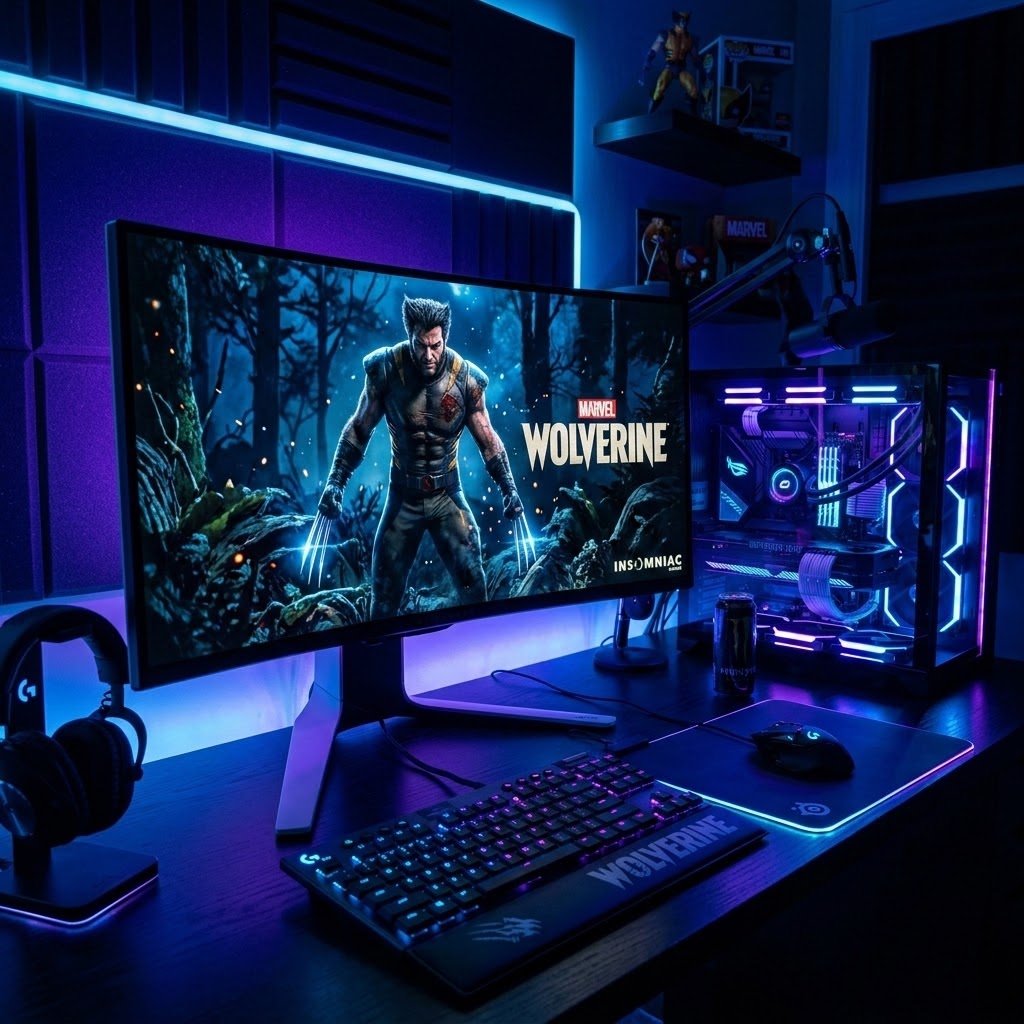
Introduction Marvel’s Wolverine has finally arrived, bringing brutal, fast-paced action and stunning next-gen environments. However, pushing those impressive visuals can take a heavy toll on your gaming rig. If you've already checked our guide on fixing frame drops, your next step is optimizing your graphics for a consistent 60+ FPS without making the game look like a potato.
Here is the ultimate guide to the best PC settings for Marvel's Wolverine.
Best Display Settings for Wolverine Before tweaking the deep graphical options, make sure your baseline display settings are correct.
Display Mode: Fullscreen (Exclusive) – Crucial for reducing input lag and maximizing resources.
Resolution: Your monitor's native resolution (e.g., 1920x1080 or 2560x1440).
VSync: Off (Turn this on only if you experience severe screen tearing).
NVIDIA Reflex Low Latency: On + Boost (A must-have if you own an RTX card to make combat feel responsive).
Best Graphics Settings for Maximum FPS We tested various configurations to find the sweet spot between high framerates and gorgeous visuals. Apply these settings:
Texture Quality: High (Set to Medium if your GPU has less than 8GB of VRAM).
Shadow Quality: Medium (Shadows are notoriously heavy. Dropping this from High to Medium saves around 10-15% of your frame rate).
Ambient Occlusion: SSAO (Avoid Ray-Traced Ambient Occlusion unless you have an RTX 4080 or higher).
Volumetric Fog & Clouds: Low or Medium. (Wolverine features a lot of atmospheric fog, lowering this provides a massive performance boost).
Level of Detail (LOD): Medium.
Hair Quality: Standard (While advanced hair physics look great in cutscenes, they can cause massive stuttering during intense combat).
Upscaling: DLSS, FSR, and XeSS Upscaling is your best friend in modern AAA titles.
NVIDIA Users: Turn on DLSS and set it to Quality or Balanced. If you have an RTX 40-series card, enable Frame Generation for an instant 2x FPS boost.
AMD Users: Turn on FSR 3.0 and set it to Quality.
Note: Ensure you update your graphics drivers before using these features to avoid visual glitches.
Conclusion By tweaking these settings, you should see a significant performance uplift, allowing you to slice through enemies with buttery-smooth combat.
Are you still experiencing technical issues? Check out our previous article on [ How to Fix Frame Drops and Stuttering in Marvel's Wolverine] for deep-dive Windows and hardware fixes!
Comments
No approved comments yet. Start the conversation.