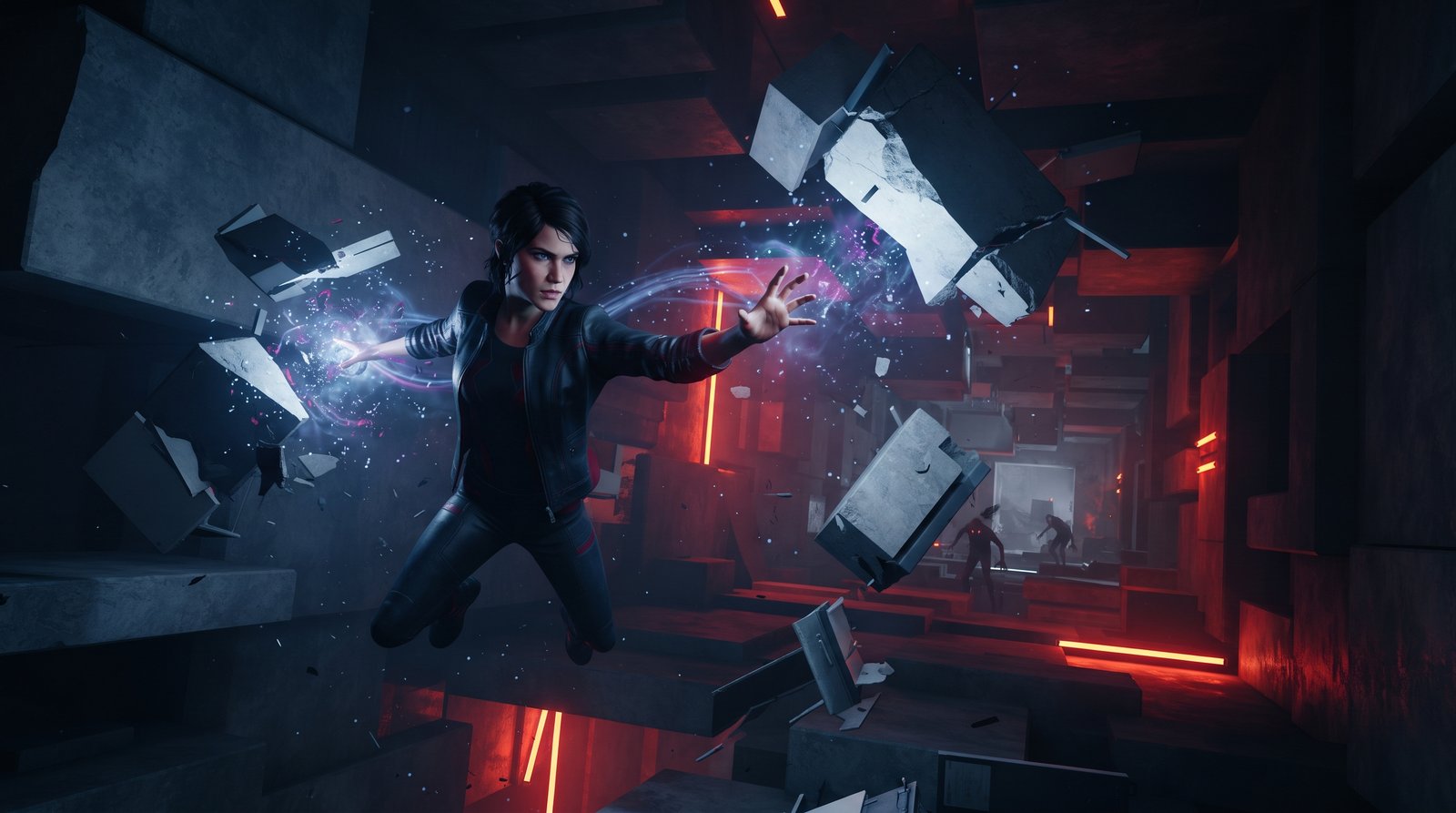
Introduction to Control Resonant PC Performance Control Resonant delivers stunning, mind-bending visuals, but its heavy physics and ray-tracing elements can put a severe strain on your hardware. If you are experiencing stuttering or low frame rates, optimizing your in-game graphics settings is essential for a fluid experience.
Best Graphics Settings for High FPS To strike the perfect balance between visual fidelity and performance, apply these recommended settings:
Display Mode: Exclusive Fullscreen (reduces input lag and prioritizes system resources).
V-Sync: Off (unless you experience severe screen tearing, turn it on via your GPU control panel instead).
Render Scale / Upscaling: Set to DLSS or FSR Quality mode for a massive performance boost with minimal visual loss.
Shadows and Reflections: Set to Medium. These are the biggest FPS killers in Remedy's engine.
Fixing Stuttering and Frame Drops If your game hitches during intense supernatural combat, try these quick fixes:
Update your graphics card drivers to the latest version released specifically for Control Resonant.
Move the game installation directory to a high-speed NVMe SSD to eliminate asset-loading stutter.
Limit your background applications, especially browser tabs and recording software that consume vital RAM.
Final Tweaks for Maximum Stability Locking your frame rate using your GPU software (NVIDIA Control Panel or AMD Adrenalin) to match your monitor's refresh rate can prevent wild frame fluctuations and provide a much smoother overall gaming experience.
Comments
No approved comments yet. Start the conversation.