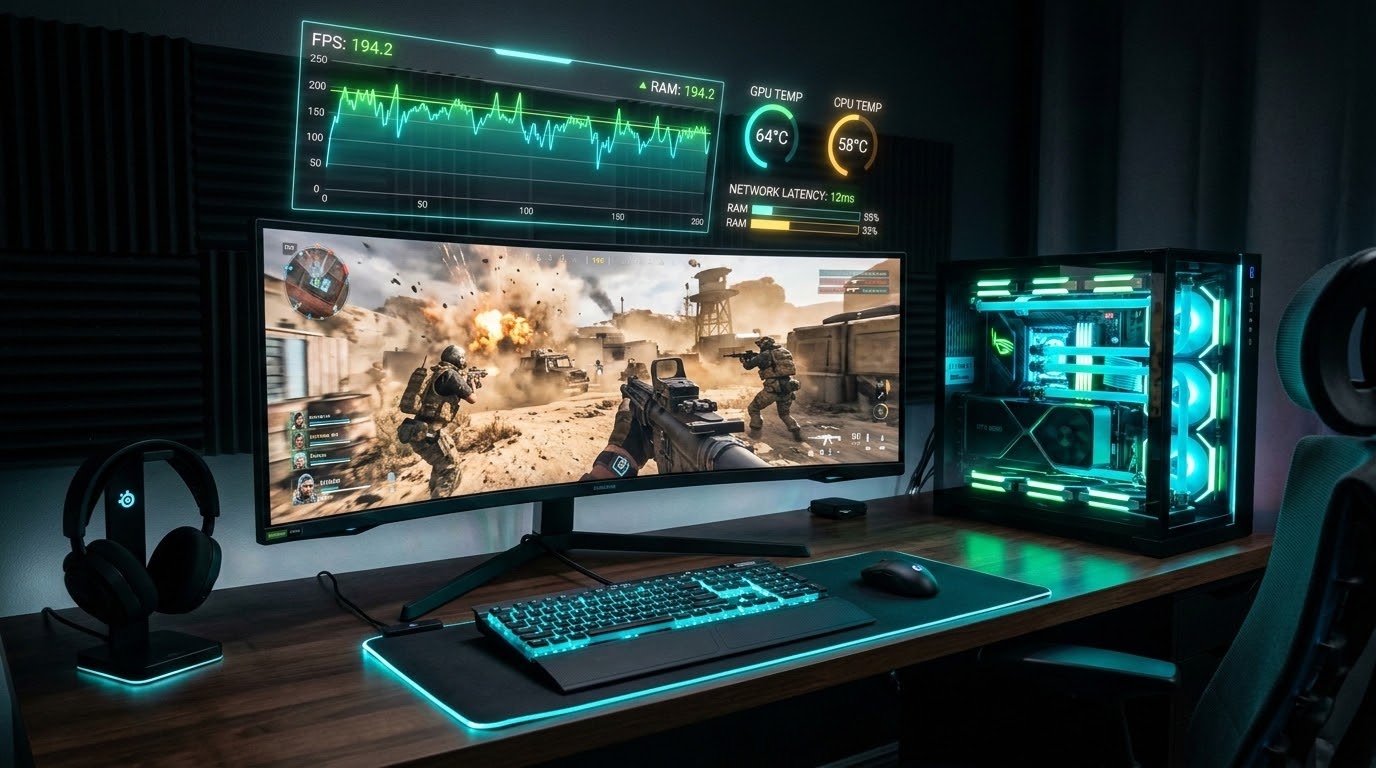
There is nothing more frustrating for a PC gamer than a sudden frame drop, a rubber-banding character, or a screen that freezes for half a second in the middle of a firefight. While these issues are often grouped together, they are actually three distinct problems: Low FPS (frames per second), Stuttering (inconsistent frame times), and Lag (network delay).
This ultimate guide will walk you through everything from basic settings to advanced hardware tweaks to get your games running silky smooth.
Step 1: Diagnose the Problem (FPS vs. Stutter vs. Lag)
Before applying fixes, you need to know what you're fixing.
Low FPS: The game feels slow, like a slideshow. Your hardware (GPU/CPU) is struggling to render frames quickly enough.
Stuttering: The game runs fast, but freezes for a millisecond every few seconds. This is usually a CPU, RAM, or storage issue, or shader compilation.
Lag: The game runs smoothly, but your inputs are delayed, or other players teleport. This is strictly a network/internet issue.
Pro Tip: Use MSI Afterburner with RivaTuner Statistics Server (RTSS) to monitor your FPS, frame times, CPU/GPU usage, and temperatures in real-time.
Step 2: In-Game Settings Optimization (The Quickest Wins)
Don't just set everything to "Ultra." Some settings cost massive performance for negligible visual gain.
Resolution: If you are struggling, drop from 4K to 1440p, or 1440p to 1080p. Alternatively, use Upscaling technologies like NVIDIA DLSS, AMD FSR, or Intel XeSS. Set them to "Quality" or "Balanced" to gain massive FPS.
Shadows & Lighting: These are heavily CPU and GPU intensive. Drop them from Ultra to Medium. You will barely notice the difference.
Volumetric Fog/Clouds: One of the biggest performance killers. Turn this to Low or Off.
Anti-Aliasing: Use TAA or DLSS instead of MSAA. MSAA is incredibly demanding.
V-Sync: Turn it OFF in-game. V-Sync introduces input lag and can cause stuttering if your FPS drops below your monitor's refresh rate. Instead, cap your frame rate in your GPU driver (NVIDIA Control Panel or AMD Adrenalin) to 3 FPS below your monitor's refresh rate (e.g., cap at 141 FPS for a 144Hz monitor) and turn on G-Sync/FreeSync.
Texture Quality: This mostly uses VRAM. If you have a GPU with 8GB+ of VRAM, keep this on High. If you have less, drop it.
Step 3: Windows OS & Driver Optimization
Your operating system might be fighting your game for resources.
Update GPU Drivers: Always use the latest drivers. For a clean slate, download DDU (Display Driver Uninstaller), boot into Safe Mode, wipe your old drivers, and install the new ones.
Windows Power Plan: Go to Control Panel > Power Options. Select High Performance or Ultimate Performance.
Disable Background Apps: Open Task Manager and close Chrome, Spotify, and especially overlays (Discord overlay, Xbox Game Bar, GeForce Experience overlay). Overlays are a leading cause of stuttering.
Hardware-Accelerated GPU Scheduling (HAGS): In Windows Graphics Settings, turn this ON. It can reduce latency, though on some older systems it might cause stutter (test both ways).
Disable Fullscreen Optimizations: Right-click your game's .exe file > Properties > Compatibility > Check "Disable fullscreen optimizations."
Step 4: Hardware and BIOS Tweaks
If software tweaks aren't enough, look at your hardware.
Enable XMP/DOCP: This is crucial. If you bought RAM rated for 3200MHz or 3600MHz, it defaults to 2133MHz until you enable XMP in your BIOS. Slow RAM is a major cause of stuttering.
Install Games on an SSD: If your games are on a Hard Drive (HDD), stuttering is guaranteed. Move them to a Solid State Drive (SSD) or NVMe drive.
Monitor Temperatures: If your CPU or GPU hits 90°C+, they will thermal throttle, causing massive FPS drops. Clean your PC's dust filters and consider repasting your CPU/GPU.
Check for Bottlenecks: If your GPU usage is at 99% but your CPU is at 40%, you need a better GPU. If your CPU is at 100% and your GPU is at 60%, you have a CPU bottleneck.
Step 5: Fixing Network Lag (For Online Gamers)
If your FPS is high but you have lag:
Use Ethernet: Wi-Fi is convenient but prone to packet loss and jitter. Plug in a LAN cable.
Close Background Downloads: Windows Update, Steam downloads, or other users streaming Netflix will destroy your ping.
DNS Settings: Change your DNS to Cloudflare (1.1.1.1) or Google (8.8.8.8) for potentially better routing.
Game Server Location: Make sure you are connecting to the server closest to your region.
Step 6: Advanced Troubleshooting (Shader Compilation Stutter)
Modern games (especially Unreal Engine 4 and 5 titles) suffer from "Shader Compilation Stutter." The game compiles shaders on the fly, causing hitches.
Let it compile: When you first launch a game, sit in the main menu for a few minutes. Let the CPU compile shaders.
Delete Shader Cache: If a game updates and starts stuttering, delete the shader cache folder (usually in Documents/My Games or the game's install folder). The game will recompile them.
Rollback Drivers: Sometimes, a new GPU driver breaks a specific game. If stuttering started right after an update, roll back to the previous driver version.
Conclusion
Fixing stuttering, lag, and low FPS is a process of elimination. Start with the easy software fixes (in-game settings and background apps), then move to drivers and BIOS, and finally evaluate your hardware. By applying these steps systematically, you can transform a frustrating, choppy experience into a buttery-smooth, competitive one.
Comments
No approved comments yet. Start the conversation.